Choosing a method
Tab groups or bookmarks: what do you need to keep?
A bookmark keeps a useful destination. A tab group keeps related pages together. Here is how to choose for a task that changes while you browse.
The same page can serve two different purposes
A laptop review might be something you are using to choose a computer this week. It might also be a useful explanation of screen sizes that you want to keep for another purchase.
In the first case, it belongs with your current comparison. In the second, you want a lasting link that you can find without reopening that whole task. You can use both a group and a bookmark for the same page when both reasons apply.
The choice becomes clearer when you ask what should happen after you close a tab. Should the link stay in a fixed collection? Or should closing it mean you are finished with that page in the current task?
Use bookmarks for destinations you want to keep
A bookmark is useful when you want to return to a specific address regardless of what is open now. Examples include a school portal, a recipe, or the manufacturer’s support page for a laptop you already own.
You can also keep a fixed collection in a bookmark folder. Chrome’s bookmark-all-tabs shortcut is Ctrl + Shift + D on Windows or Linux, or Command + Shift + D on Mac.
The key word is fixed. Closing a product page after ruling out that laptop does not remove its bookmark. That separation is useful when you want a reference library. If you want the collection to reflect your changing shortlist, you will need to maintain the bookmarks yourself.
A sensible name helps here too. “Laptop manuals” describes links worth keeping after the purchase. “Buy a laptop” describes a task that will eventually end.
Use Chrome groups to keep related tabs together
Native Chrome groups give related tabs a shared name and color in the tab strip. Chrome also supports saving and syncing groups, as Google describes in its tab-group update. They are not limited to temporary colored labels.
This can be enough when you want a few related sets in the browser you already use. You might have one for trip planning and another for an assignment, with the usual browser controls close at hand.
Do not assume you need a session manager simply because you want to reopen a set of tabs. Start with the built-in features. The reason to choose a different tool should be a particular way you want to work, rather than a claim that the browser cannot save a group.
Use TabBundle to switch groups from a sidebar
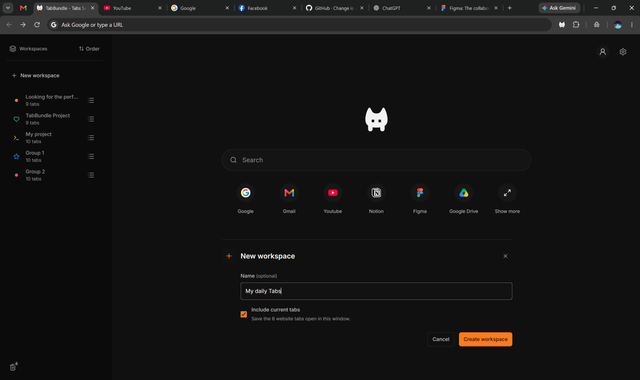
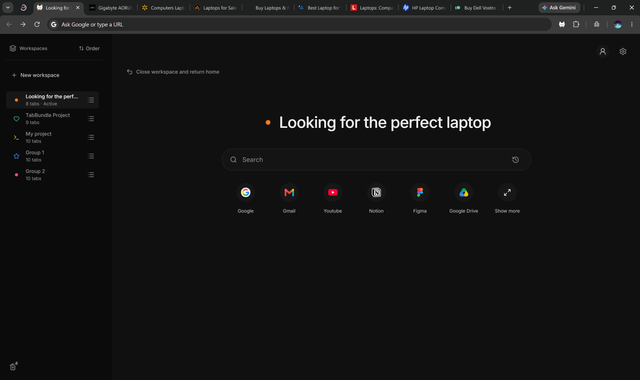
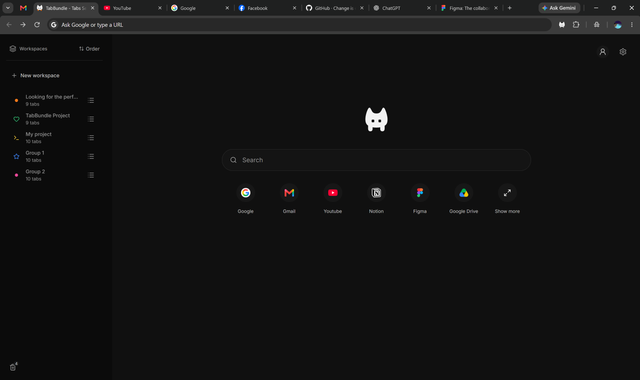
Chrome’s saved groups can change as you browse too. TabBundle is an alternative built around selecting a group from a sidebar, with shared shortcuts, a recently closed list for each group, and local exportable backups. You create and name the groups yourself.
Suppose “Looking for the perfect laptop” starts with eight tabs. You close three models and open one new review. While the group is active, it updates to the six tabs still open. When you switch away and return, those are the links it reopens.
A bookmark folder containing the original eight addresses would still contain eight bookmarks unless you edited it. That difference is useful for a changing task; a fixed folder may be better for a collection you intend to preserve.
TabBundle also gives each group a recently closed list and puts deleted groups in Trash. Those are separate recovery paths: one for a page you closed while browsing, the other for a whole group you removed. See the tab and group recovery steps if you need either.
There are limits. TabBundle reopens URLs, not unsaved forms or the exact position inside a page. Groups stay in the browser where you use them, and signing in does not sync them to another device. You can export and import a backup to move your data. The privacy policy explains what stays local and what your account stores online.
Choose using one real task
Try the choice with pages you already have, rather than building a complicated filing system in advance.
- “I want this address next year.” Bookmark it.
- “These pages belong together in Chrome.” Try a native tab group.
- “I want to choose my groups from a sidebar, with shortcuts and recovery tools nearby.” Consider TabBundle.
You do not have to pick one method for everything. Your bank can stay bookmarked while laptop research sits in a group. When you finish the research, the receipt or support page can become a lasting bookmark and the temporary group can go.
For the actual clicks, use the Chrome tab-saving guide. If the problem is deciding which pages belong together in the first place, start with one unfinished task.