Recovery
How to reopen a closed tab in Chrome
Use the reopen-tab shortcut first. If you deleted a TabBundle group, check Trash. The recovery steps depend on what you closed or deleted.
Closed a Chrome tab? Try the shortcut first
Press Ctrl + Shift + T on Windows or Linux, or Command + Shift + T on Mac. Repeat it to reopen earlier closed tabs. This is Chrome’s built-in action; you do not need an extension for it. Google lists it in the Chrome keyboard shortcuts.
Before searching for more recovery tools, identify what is missing. A single page, a closed group, and a deleted group are different things. The right next step depends on which action you took, and on whether the group belonged to Chrome or TabBundle.
If the shortcut returns a different page, that does not necessarily mean the page you wanted is gone. It may simply be further back in the order of tabs you closed.
If the shortcut does not find it, search History
Open Chrome’s menu, then choose History → History. Search for the site name or a word you remember from the page title. When the page appears, open its link again.
This helps when you remember the page but not how far back it sits among your closed tabs. It cannot recover an entry you already deleted from History, or a page visited only in Incognito mode. Google’s guide to Chrome browsing history explains what the list contains.
If you closed a native Chrome group
Open Chrome’s Tab groups menu and look for it. Close group keeps a saved group available to reopen; Delete group removes it. Google explains the difference in its group-management instructions.
TabBundle’s Trash cannot restore a group deleted from Chrome’s native tab-group menu. They are separate systems, even though both use the word “group.” Checking the wrong one can make an available group appear to be missing.
If you use more than one browser profile, also check that you are looking in the profile where you created the group. Avoid deleting or resetting browser data while you are still trying to find it.
If you closed a tab inside a TabBundle group
Open the relevant TabBundle group, then select the history icon at the right of the search field. It is labeled Recently closed. Select the page you want to reopen.
This list belongs to that group. If you closed a laptop review while researching a purchase, look in the laptop group rather than a different group you used later.
TabBundle keeps up to 50 recently closed tabs per group on your device. The list can be cleared, and it is not included in exported backups. Treat it as a way to recover a recent mistake, rather than a permanent archive of every page you have visited.
Closing a tab also changes the active group’s open set. If you deliberately closed three rejected laptops, those pages should not all return just because you reopen the group. Recently closed is there when you change your mind about one of them.
If you deleted an entire TabBundle group
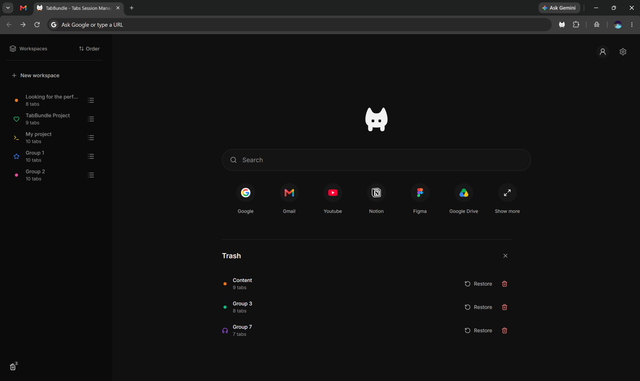
Select the small Trash icon at the bottom of TabBundle’s sidebar. Find the group by name and select Restore. The group and its saved tab links return to your list; choose the group when you want to open it.
The screenshot shows this route. Each row represents a deleted group, with a Restore action beside it. The separate bin action permanently deletes that group after confirmation, so take a moment to read which action you are choosing.
If you already permanently deleted the group, Trash cannot bring it back. An exported backup made before the deletion may contain it. Before importing, close your current group and export your present data too.
In Settings → Data & backup → Import backup, review the file and import options. Merge adds missing content while keeping current edits and preferences. Replace uses the backup instead of current data. A recovery copy is kept before importing, but keeping your own export gives you a file you control.
Make the next recovery easier
Export a backup before uninstalling TabBundle, clearing browser data, or moving to another browser. Groups are stored locally. Your sign-in manages account access and does not provide a cloud copy of them.
Also distinguish a recovered link from recovered work. Reopening a page in TabBundle does not restore unsaved text, a form entry, or where you were scrolled. A website may keep its own saved work, but that is separate from the tab link.
For pages that matter beyond the current task, consider keeping a bookmark as well. A manual, named collection is easier to find later than relying on a short recovery list. The guide to bookmarks and groups helps you choose what to keep where.
For a group you plan to revisit regularly, follow the tab-saving steps before you need a recovery. A little preparation is more useful than expecting any browser tool to recover every deleted page.