Chrome guides
How to save tabs in Chrome and come back to them
Bookmark a set of links, close a saved Chrome tab group, or switch between groups in TabBundle. Choose what should be waiting when you return.
First, choose what you want to come back to
You have six pages open for something you have not finished. You want them out of the way, but closing the window feels like losing your place.
Chrome gives you several ways to keep those links. The useful question is what should come back: the same list you have now, the pages from your last browser session, or a group that changes as you work through it.
- Keep this exact list of links: make a bookmark folder.
- Put a related set aside: use a saved Chrome tab group.
- Return after quitting Chrome: change the startup setting.
- Move between ongoing tasks: use named groups in TabBundle.
None of these is a substitute for saving a document or submitting a form on the website itself.
Keep a fixed list with a bookmark folder
With the tabs you want in the current Chrome window, press Ctrl + Shift + D on Windows or Linux, or Command + Shift + D on Mac. Name the folder and save it. Google lists this in its Chrome keyboard shortcuts.
Choose a name that tells you why you kept the pages. “Laptops under $1,000” will be easier to recognize than “Tabs” a month later.
The folder stays a list of bookmarks. If you reopen the pages and reject two of the laptops, closing those two tabs does not remove their bookmarks. Edit the folder when you want to change the list. That is useful for a reference collection, but can become extra work for a comparison that changes every day.
Put pages aside with a Chrome tab group
Right-click a tab, choose Add tab to group, and create a group. Give it a name, then drag related tabs into it. To put it away, right-click the group name and choose Close group. Reopen it from Chrome’s Tab groups menu.
Closing a saved group is different from deleting it. Chrome also supports saved group syncing when the relevant Google Account sync settings are enabled. See Google’s current tab-group instructions for the available controls.
If those controls already do what you need, you can stop here. You do not need another tool just to keep a few related pages together.
Reopen your last session when Chrome starts
For a browser that opens back to the pages you were using, go to Settings → On startup → Continue where you left off. Google explains the setting in its startup-page guide.
This answers a different question from keeping named groups. It is a way to resume after quitting, rather than a list of separate tasks you can choose between during the day.
For example, you may want yesterday’s browser back in the morning, but still want to put your laptop search away during a call. A startup preference handles the first part; a named group handles the second.
Choose a group from TabBundle’s sidebar
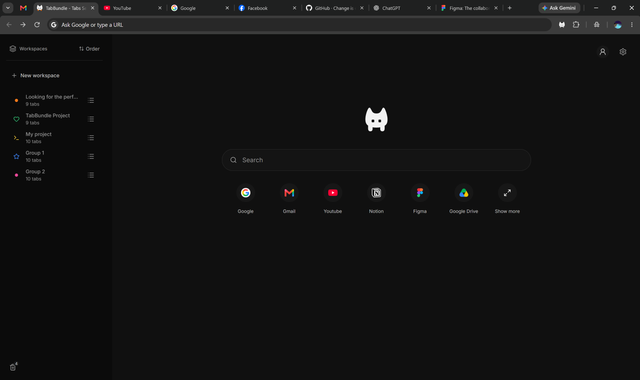
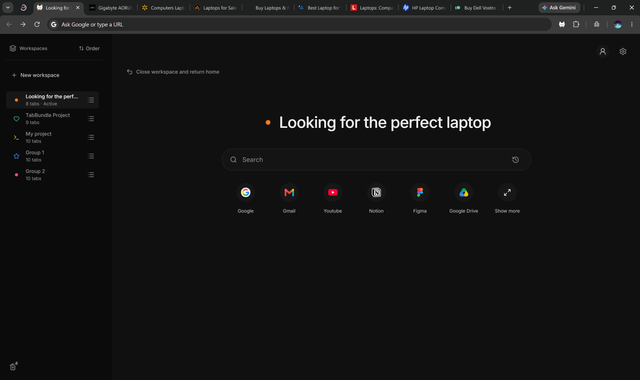
TabBundle offers another way to move between sets of tabs: choose a named group from its sidebar. Chrome’s saved groups also change as you add and remove tabs. In TabBundle, the active set follows the pages you open, close, and navigate while you browse.
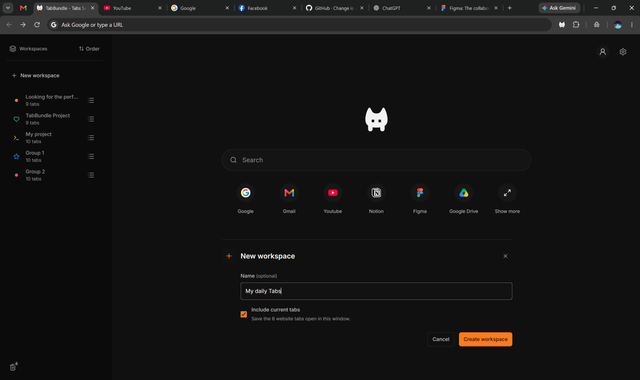
- In TabBundle, select New workspace. This is the app’s name for creating a group.
- Name it and leave Include current tabs selected to include the website tabs in this window.
- Create the group, then select it from the sidebar to open it. Creating it does not open it automatically.
- Browse normally. The active group updates as you open, close, and navigate tabs.
- Switch to another group when you need it. Returning reopens the links left open in the group you choose.
You name and create the groups yourself. TabBundle does not sort your pages into topics automatically. It reopens links, without restoring unsaved text, scroll positions, or other changes inside a page.
Your groups stay in this browser; signing in elsewhere does not sync them. Export a backup from Settings → Data & backup before removing the extension or moving to another browser.
Still deciding which method fits? The comparison of groups and bookmarks uses the same shopping example. You can also check TabBundle’s browser availability.