Everyday browsing
Too many tabs open? Start with the task you want to finish
A practical way to separate laptop research, everyday sites, and unfinished tasks without keeping every tab in front of you.
Start with one unfinished task
The tab strip might contain a laptop review, your email, three shop pages, a video, and a document you need later. They all look equally unfinished from the top of the window.
Do not begin by naming a category for every tab. Pick the thing you want to finish next. If that is choosing a laptop, identify the product pages and reviews that help you make that decision. Those are the pages that belong together right now.
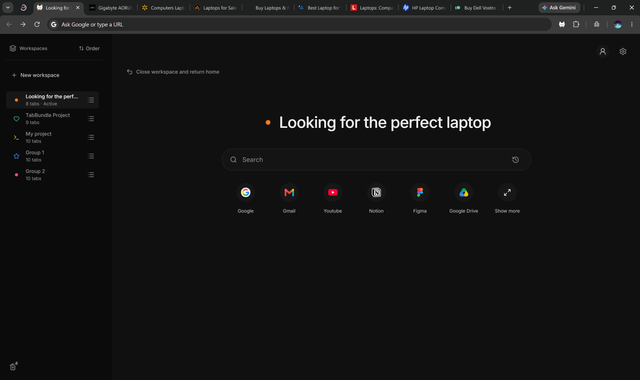
A group called “Looking for the perfect laptop” describes an actual task. “Shopping” could hold anything you have considered buying in the last year. Use the name that will remind you what you were trying to decide.
You can leave the rest alone while you try this with one task. There is no need to reorganize your entire browser before finding out whether the approach suits you.
Give each page a reason to stay
Look at each page in that task and ask what you still need from it. A laptop comparison is a useful example because the answer changes as you learn more.
- A model you are still considering: keep its page in the group.
- A review that answers an open question: keep it beside the product pages.
- A model you have ruled out: close it.
- A buying guide worth reading next year: bookmark it.
- Email you check throughout the day: keep it as an everyday destination, rather than part of the laptop decision.
You are deciding what needs to be open for this task. A bookmark can keep a useful reference without leaving that page among today’s choices. The groups-and-bookmarks guide explains that distinction in more detail.
Put the other task away when you switch
A group only helps if it makes the next switch easier. Before leaving the laptop search, close the pages you no longer need and save any work inside websites. The remaining tabs should be the ones that make sense to reopen.
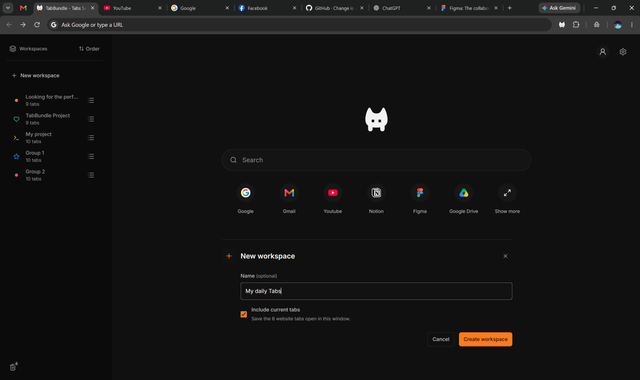
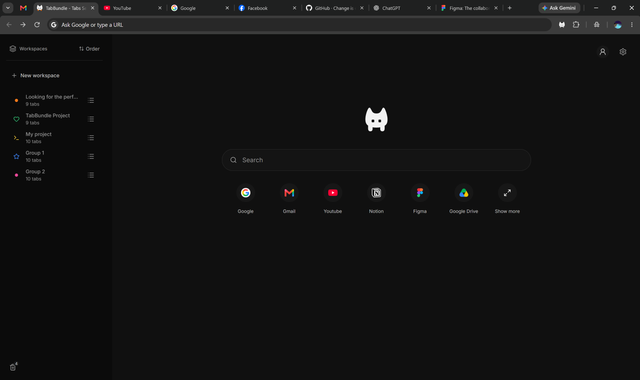
With TabBundle, create a named group using New workspace, then select the group to open it. Its tabs update while the group is active. Switching to a different group closes the current group’s tabs and reopens the links left in the one you select.
That means the laptop group can shrink from eight pages to four as you narrow your choices. It does not remain a permanent copy of every page you opened. You also choose which groups to create; there is no automatic categorization.
Chrome’s own saved groups also change as you add and remove tabs. You can close a group and reopen it later. Google’s instructions explain how to close and reopen a Chrome group. If that workflow fits, you may not need a separate extension.
Keep everyday sites easy to reach
Your email, calendar, or music player may matter across several tasks. Putting those links into every group makes the groups repetitive. Leaving everything open all day may bring the same clutter back.
TabBundle’s shortcuts give you another option: add the destinations you use often, then open them from a new tab when you need them. A shortcut is a link you can reach again, rather than a promise that the page will always stay open.
If a pinned tab really does need to stay open as you switch, turn on Keep pinned tabs in Settings. Choose deliberately: a live call may need to stay, while a site you visit twice a day may only need a shortcut.
If you lose track of a page that is already open in Chrome, use Tab Search rather than opening another copy. Google’s guide to organizing Chrome tabs covers that built-in option.
Judge the setup when you return
The next time you reopen the laptop group, check whether it gets you back to the decision. Can you recognize the remaining models? Are the useful reviews there? If a page is missing, was it closed because you had finished with it?
This is more useful than aiming for an empty browser or a particular number of tabs. A task may reasonably need several pages. What matters is whether the set still tells you what you are doing.
When the decision is finished, keep any lasting reference as a bookmark and remove the group if you no longer need it. In TabBundle, deleted groups go to Trash, where you can restore them until you permanently delete them.
Before relying on any tab tool, know what it keeps. TabBundle stores links locally, not unsaved text or the exact state of a website. Keep a backup, and use a website’s own save controls before switching. For the practical setup steps, see how to keep tabs for later or look through TabBundle’s features.